Linux RHEL 7 & CentOS 7
Downloading Latest Java
Note: If your CentOS or RHEL is a fresh minimal installation, maybe you have to install wget utility using yum
# yum -y install wget |
Download latest Java SE Development Kit 8 release from its official download page or use following commands to download from shell
# cd /opt/ |
Note: For production servers is highly recommended installing Java Server JRE. The Server JRE includes tools for JVM monitoring and tools commonly required for application servers, but does not include browser integration (the Java plug-in)
# cd /opt/ |
Configuring Environment Variables
Most of Java based application’s uses environment variables to work. CentOS and RHEL provides of /etc/profile.d/ directory for customizing environment variables per application
# echo "export JAVA_HOME=/opt/jdk1.8.0_172/" >> /etc/profile.d/java.sh |
Install Java with Alternatives
After setting Environment Variables use Alternatives to install Java
# alternatives --install /usr/bin/java java $JAVA_HOME/bin/java 1 |
At this point Java 8 has been successfully installed on your system.
Note: If you performed this installation in a Development Server, we also recommend to setup javac commands path using alternatives
|
Linux Debian & Ubuntu
Downloading Latest Java
Note: If your Ubuntu or Debian is a fresh minimal installation, maybe you have to install wget utility using apt-get
$ sudo apt-get install wget |
Download latest Java SE Development Kit 8 release from its official download page or use following commands to download from shell
$ cd /opt/ |
Note: For production servers is highly recommended installing Java Server JRE. The Server JRE includes tools for JVM monitoring and tools commonly required for server applications, but does not include browser integration (the Java plug-in)
$ cd /opt/ |
Configuring Environment Variables
Most of Java based application’s uses environment variables to work. CentOS provides of /etc/profile.d/ directory for customizing environment variables per application
$ sudo echo "export JAVA_HOME=/opt/jdk1.8.0_172/" >> /etc/profile.d/java.sh |
Install Java with Alternatives
After setting Environment Variables use Alternatives to install Java
$ sudo update-alternatives --install /usr/bin/java java $JAVA_HOME/bin/java 1 |
At this point Java 8 has been successfully installed on your system.
Note: If you performed this installation in a Development Server, we also recommend to setup javac and jar commands path using alternatives
$ sudo update-alternatives --install /usr/bin/javac javac $JAVA_HOME/bin/javac 1 |
MacOS X
Downloading Latest Java
Note: If your MacOS is a fresh installation, maybe you have to install wget utility
Firstly, launch Terminal (found in Application/Utilities). Download latest Java SE Development Kit 8 release from its official download page or use following commands to download:
$ cd ~/Downloads/ |
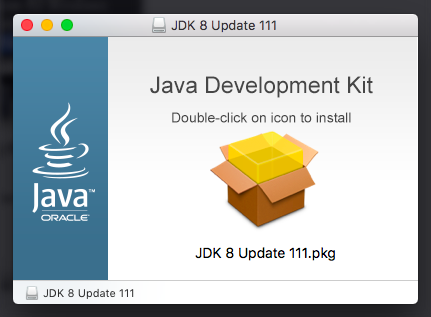
Open downloaded file with:$ open jdk-8u161-macosx-x64.dmg
This command launch a window that contains a pkg file. Make double click and follow instructions